- Create Any folder anywhere in your computer e.g. D:\PlaywrightFramework
- Open VS code Go to File–>Open Folder and Navigate to your Folder
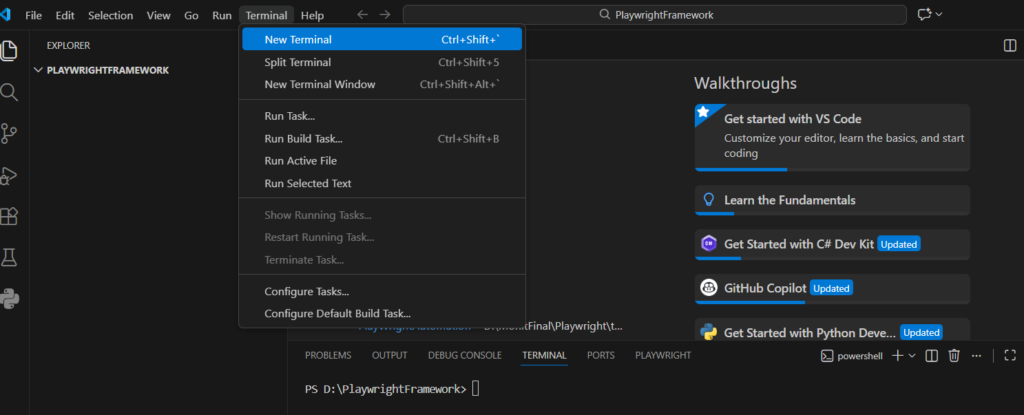
- Now Go to Terminal–>new terminal
4. In Terminal Enter following command npm init playwright@latest it will ask you to select few options, select as below
√ Do you want to use TypeScript or JavaScript? · TypeScript
√ Where to put your end-to-end tests? · tests
√ Add a GitHub Actions workflow? (Y/n) · true
√ Install Playwright browsers (can be done manually via ‘npx playwright install’)? (Y/n) · true
— And the your project will we created as you can see in screenshot below, It will create few folders and sample test cases example.spec.ts as below
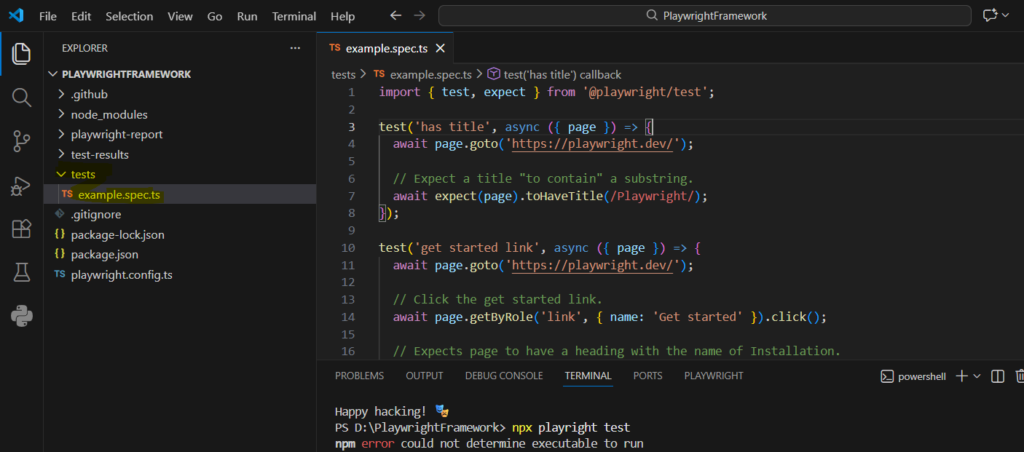
5. To run tests execute following command in UI npx playwright test
Observe that test are executed and you will see result in playwright-report folder (D:\PlaywrightFramework\playwright-report)
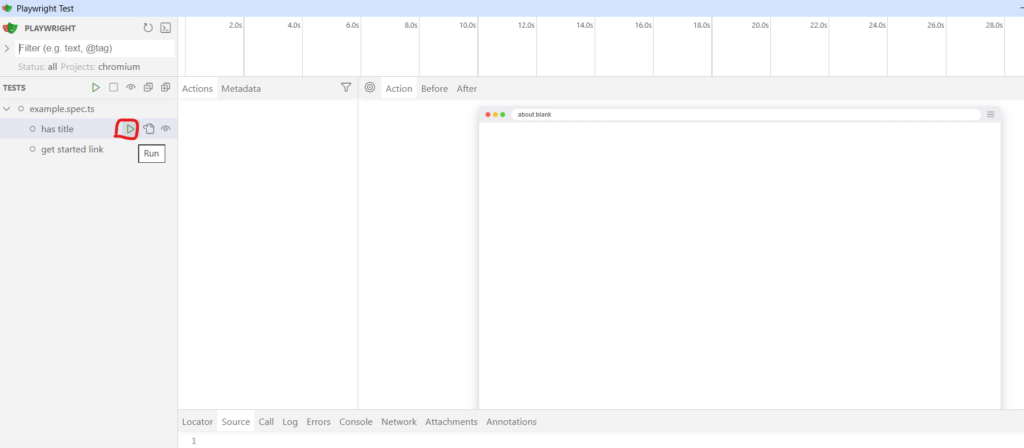
If you want to run test using UI, execute following command npx playwright test –ui
It will open UI and from there you can execute test, For each test there is play button which will appear when you hover over to test, click on that and run test and you will see your test execution